Integrity Check
If you use GPass in a hostile environment such as in a closed society, especially if your GPass software is not directly downloaded from the GPass official website (www.gpass1.com), you should check its integrity before using it. You can never be too careful -- the bad guys from repressive regimes have been known to implant viruses or Trojans in software to trap unsuspecting users.
Never trust a file sent to you as a GPass patch without checking its integrity.
How to check integrity
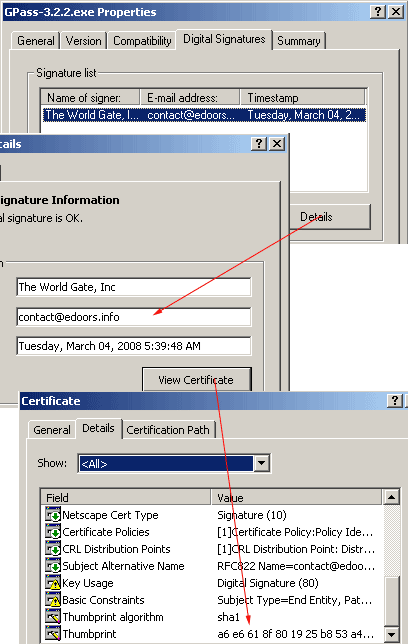
We use digital signatures for the EXE and DLL files of GPass to safeguard their integrity. To check the digital signature of a file, right click on its icon, select Properties from the popup menu, and select the Digital Signatures tab. You should see a signature by "The World Gate, Inc." Highlight the signature, click the Details button, and you should see "This digital signature is OK." See the following screenshot for an example:
Warning: If you do not see the Digital Signatures tab, or if the signature is not by "The World Gate, Inc," or if the signature is invalid, you should not use the file.
You can further check that the signing certificate of "The World Gate, Inc." has not been forged, even though this is very unlikely. Click the View Certificate button, in the Details tab of the new window, you should see the serial number 00 96 c6 3e 5a 5a 01 9c b9 17 97 b7 03 7e 97 ab d2 and thumbprint a6 e6 61 8f 80 19 25 b8 53 a4 25 39 52 39 1e 61 9e ab cb 4f.
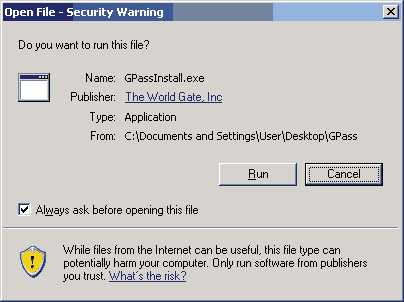
If you have downloaded GPass.exe with Internet Explorer, the following window will popup when you start GPass. This window also displays the signing company and integrity of the signature.